
1. How the app works
Your ROTO-CONTROL holds 64 plugin mappings. Library for ROTO-CONTROL keeps every mapping you have on your Mac, with no limit, and writes the ones you need to the unit over USB.
- Your library is a folder of mapping files in Documents → Library for ROTO-CONTROL → Mappings. Back it up like any other folder.
- The unit only changes when you Load, Unload or Replace a mapping, load a Group or Live set, or press MODE → PLUGIN.
- One app at a time can talk to the unit. When the app needs it, it closes Roto-Setup for you.
- The menu bar. Closing the window keeps the app running as a small knob icon in the menu bar, so MODE → PLUGIN keeps working. Quit from that icon or with ⌘Q.
2. The main window
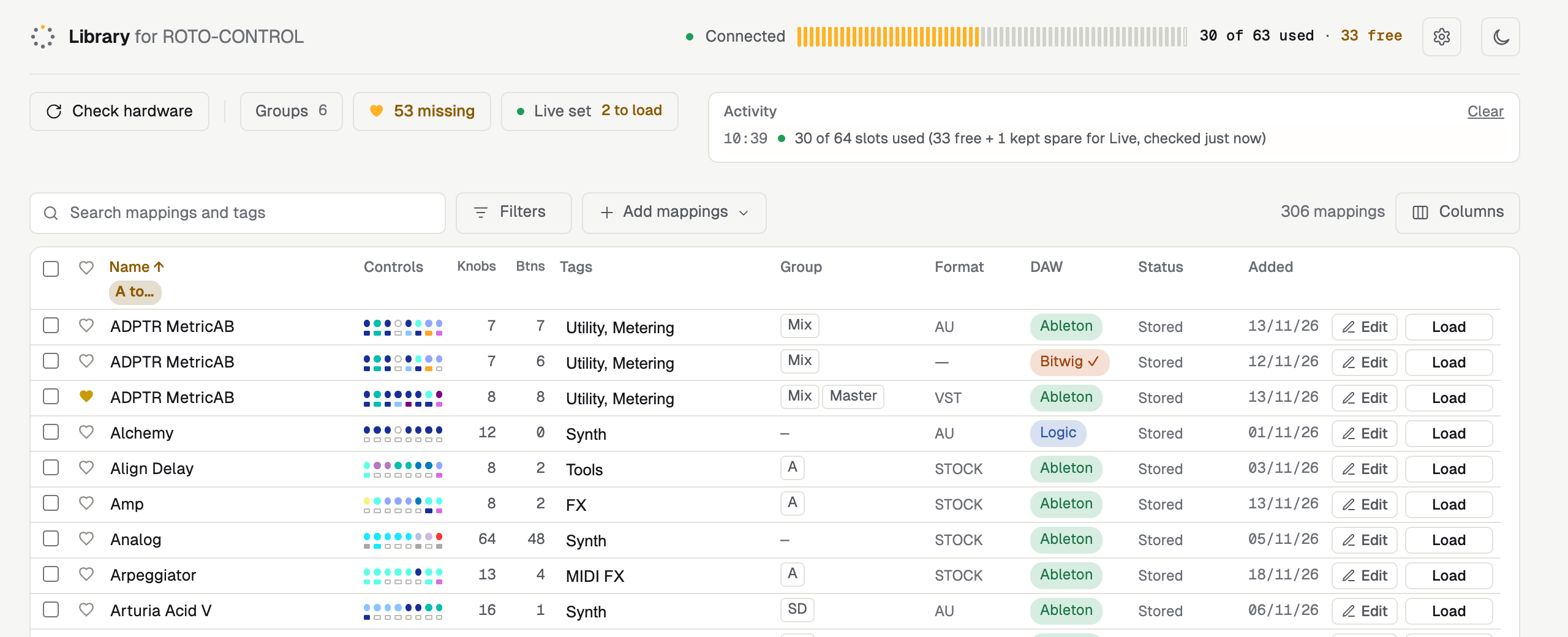
The library with the unit connected: 30 of its 63 usable slots are filled.
| Slot meter | Top right. Whether the unit is Connected, and how many slots are used and free. The unit has 64 slots: the app fills up to 63 and keeps the 64th spare for whatever you highlight in Live. |
| Check hardware | Reads what's on the unit right now and updates the Status column. It only reads, never writes. |
| Groups | Your named sets of mappings (section 9). |
| ♥ missing | Appears when favourites aren't on the unit. Click to load them (section 8). |
| Live set | Ableton only. What your open Live Set needs (section 10). |
| Activity | The result of everything you do, newest first. Clear empties it. |
| ⚙ and ☾ | Settings (section 15), and light or dark mode. |
3. The table
Every mapping in your library is one row. Click a column heading to sort it.
| ♥ | Mark a favourite. The ♥ in the heading shows only favourites. |
| Name | The plugin's name. Click it to correct a name the unit shortened. |
| Controls | A small picture of the first page's 8 knobs (top) and 8 buttons (below), in their colours. |
| Knobs / Btns | How many controls the mapping uses. |
| Tags | Click to type your own, separated by commas. |
| Group | The Groups the mapping belongs to. |
| Format | AU, VST, STOCK (Ableton's own devices) or Unidentified. |
| DAW | Ableton, Logic or Bitwig. A ✓ means the copy was checked on a unit in that DAW. |
| Status | Loaded (on the unit), Stored (in your library only) or Not checked (press Check hardware). |
| Edit | Opens the mapping editor (section 13). |
| Load | Changes to Unload when the mapping is on the unit, or Replace when your library copy has changed since it was loaded. |
A Configure chip under a name means the plugin has more than 64 parameters, so Ableton needs it set up once. Click the chip for the steps.
Columns (top right of the table) shows or hides columns, including Hashes, Date Added and Last loaded.
4. Finding mappings
- Type in Search mappings and tags to filter by name or tag.
- Filters opens a filter for each column: Tags, Group, Format, DAW and Status. Clear all filters resets them.
- Show duplicates lists mappings for exactly the same plugin, so you can tidy them up.
5. Adding mappings
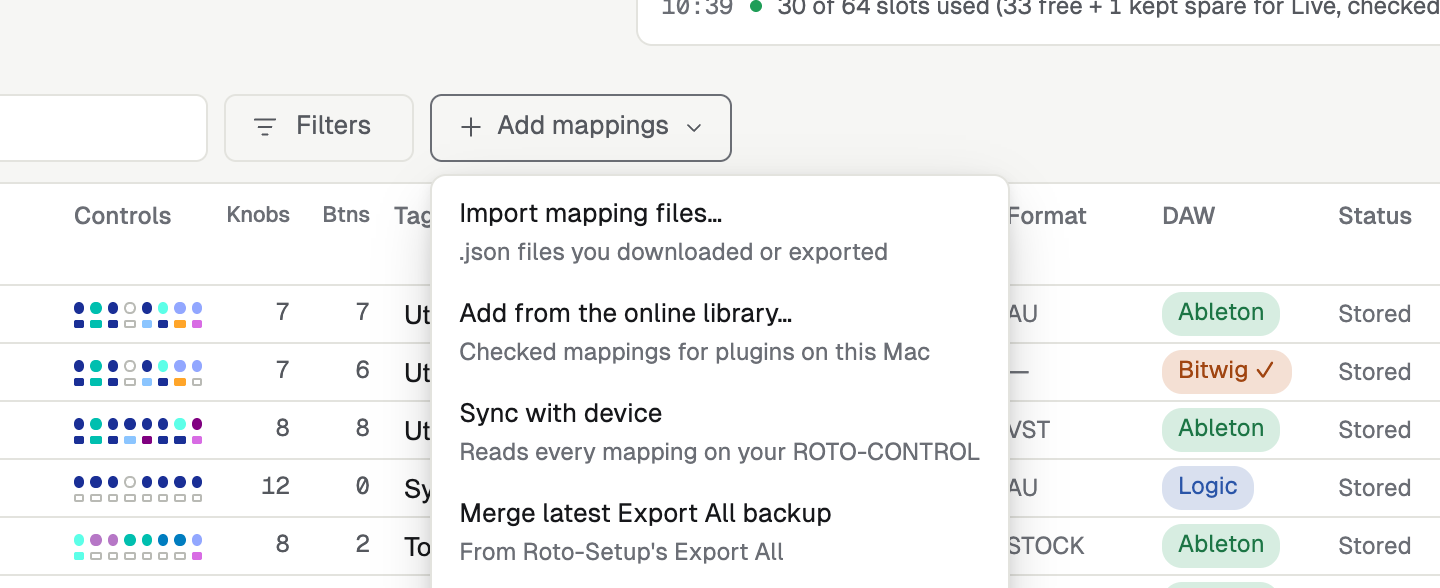
Click Add mappings. None of these write to your unit.
- Import mapping files… adds .json mapping files exported from Roto-Setup or shared by other owners. You can also drag files onto the window. You see what each file is before anything is added.
- Add from the online library… ready-made mappings for plugins on your Mac (below).
- Sync with device reads every mapping on the unit. It adds any you don't have, and updates your copy of any you've edited on the unit or in your DAW.
- Merge latest Export All backup adds mappings from your newest Roto-Setup Export All. If any differ from your library, choose Replace with backup or Keep my originals. Anything newer in your library than the backup is never overwritten.
The online library
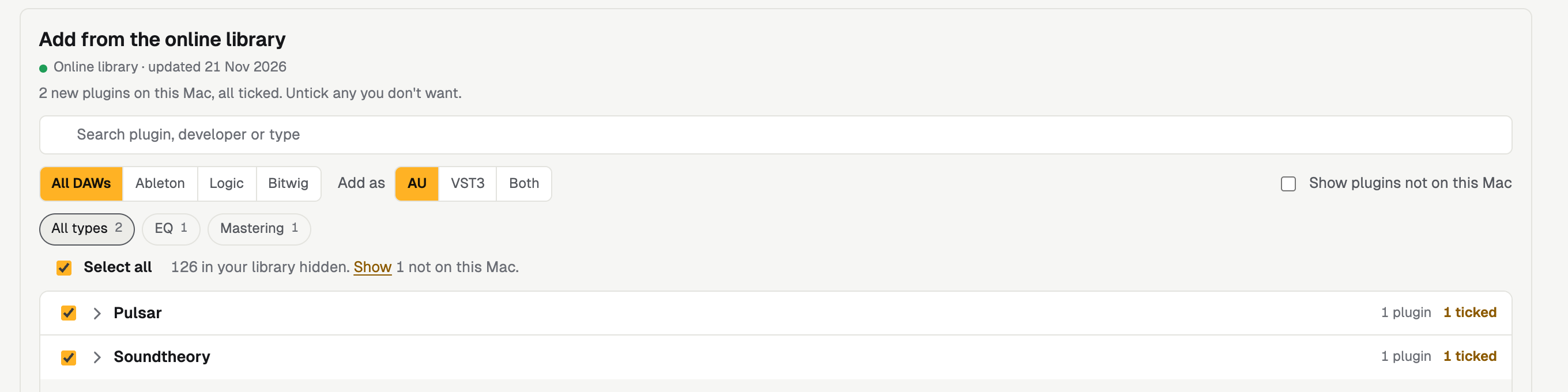
The app finds the plugins installed on your Mac and lists the mappings available for them, grouped by developer and all ticked. Mappings you already have are hidden.
- Choose a DAW, and for plugins with both formats, Add as AU, VST3 or Both.
- Untick anything you don't want. Show plugins not on this Mac lists the rest.
- Optional: A Group per developer makes a Group for each, and Tag with type tags them EQ, Compressor and so on.
- Click Add. They go into your library only, ready to Load.
Mappings marked "untested" were built from a survey of the plugin and haven't been tried on a unit yet. The app checks for new mappings in the background; switch this off in Settings if you prefer.
6. Loading and unloading
- Load writes one mapping straight to the unit.
- Unload clears it from the unit. It stays in your library.
- Replace writes your edited library copy over the one on the unit. The unit's version is kept in the archive.
When the unit is full, the app either asks which mapping to clear or clears the oldest automatically (the one loaded longest ago). You choose in Settings.
7. MODE → PLUGIN on the unit
Select a plugin in your DAW and press MODE → PLUGIN on the ROTO-CONTROL. If its mapping isn't on the unit but is in your library, the app loads it. If it's already there, nothing changes.
- The app must be running (window open or in the menu bar). Switch on Open at login in Settings so it always is.
- It pauses while Roto-Setup is open, and carries on when Roto-Setup quits.
- To be told when a mapping loads, switch on notifications: System Settings → Notifications → Library for ROTO-CONTROL.
8. Favourites
Click a row's ♥ to mark a mapping you always want on the unit. Loading other mappings can push favourites off when the unit is full. When that happens, an amber ♥ missing button appears at the top: click it to load them back. The same Reload missing favourites button is in Settings.
9. Groups
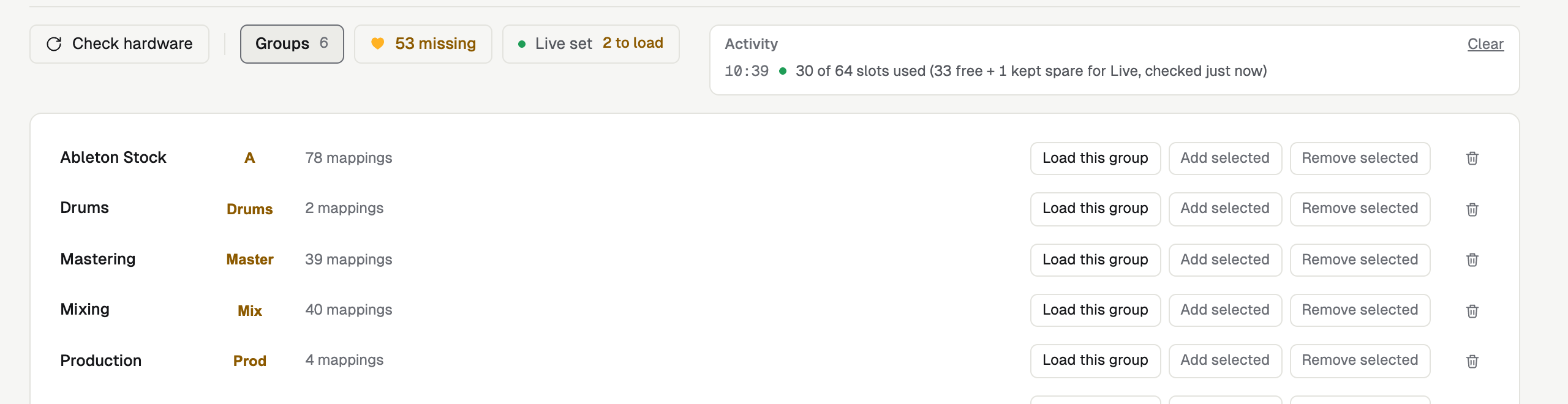
A Group is a named set, such as Mixing or Mastering. Click Groups to open the panel.
- Type a name in New group name… and click + Add.
- Tick mappings in the table, then click Add selected (or Remove selected) on the group's row.
- Load this group loads every mapping in it that isn't already on the unit, in one go.
The bin icon deletes the Group. The mappings stay in your library.
10. Live set (Ableton)

With RotoLibraryLink chosen as a Control Surface in Live (see Read Me First), the app sees which devices and plugins are in your open Live Set. Click Live set to see them in three columns: Loaded, In library, not loaded and No mapping.
Click Load the set's mappings to put everything the set needs onto the unit. If there isn't room it asks before clearing anything. Click × on a No mapping entry to hide it.
Mappings for devices added in Live 12 (Roar, Meld, Drum Sampler and others) can't be used in Live 11. Max for Live devices need Live Suite.
11. Working on several mappings
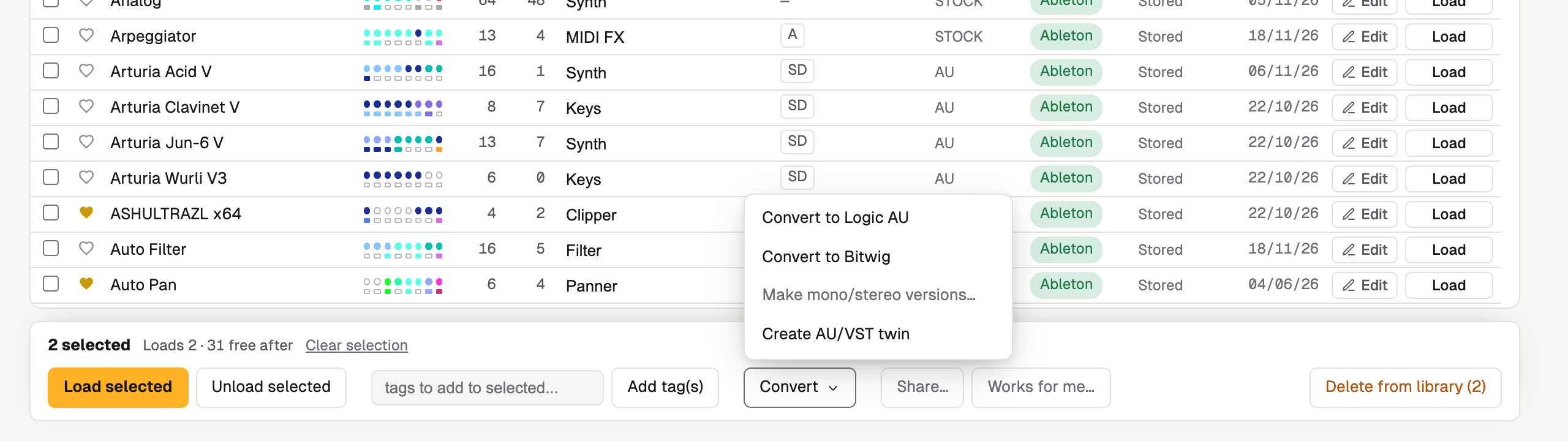
Tick rows (the box in the heading ticks every visible row). The bar under the table then offers:
| Load selected | Loads them all. It checks there's room for all of them first. |
| Unload selected | Clears them from the unit, after you confirm. |
| Add tag(s) | Adds the tags you type to every selected mapping. |
| Convert | See section 12. |
| Share… / Works for me… | See section 14. |
| Delete from library | Moves the files into the library's _archive folder. Nothing is deleted for good. |
12. Converting between DAWs
Tick mappings, click Convert and choose one. Your originals are never changed. The first three work on up to 10 mappings at a time.
- Convert Ableton ↔ Logic: an Ableton mapping becomes Logic Stereo and Mono versions; a Logic mapping becomes an Ableton one.
- Convert to Bitwig: a Bitwig copy of an Ableton or Logic mapping, for the plugin's VST3.
- Make mono/stereo versions… (Logic): adds any missing Mono, Stereo or Mono → Stereo version, so the mapping works on any track.
- Create AU/VST twin (Ableton): makes the VST version of an AU mapping, or the other way round. Not for STOCK devices.
13. The mapping editor
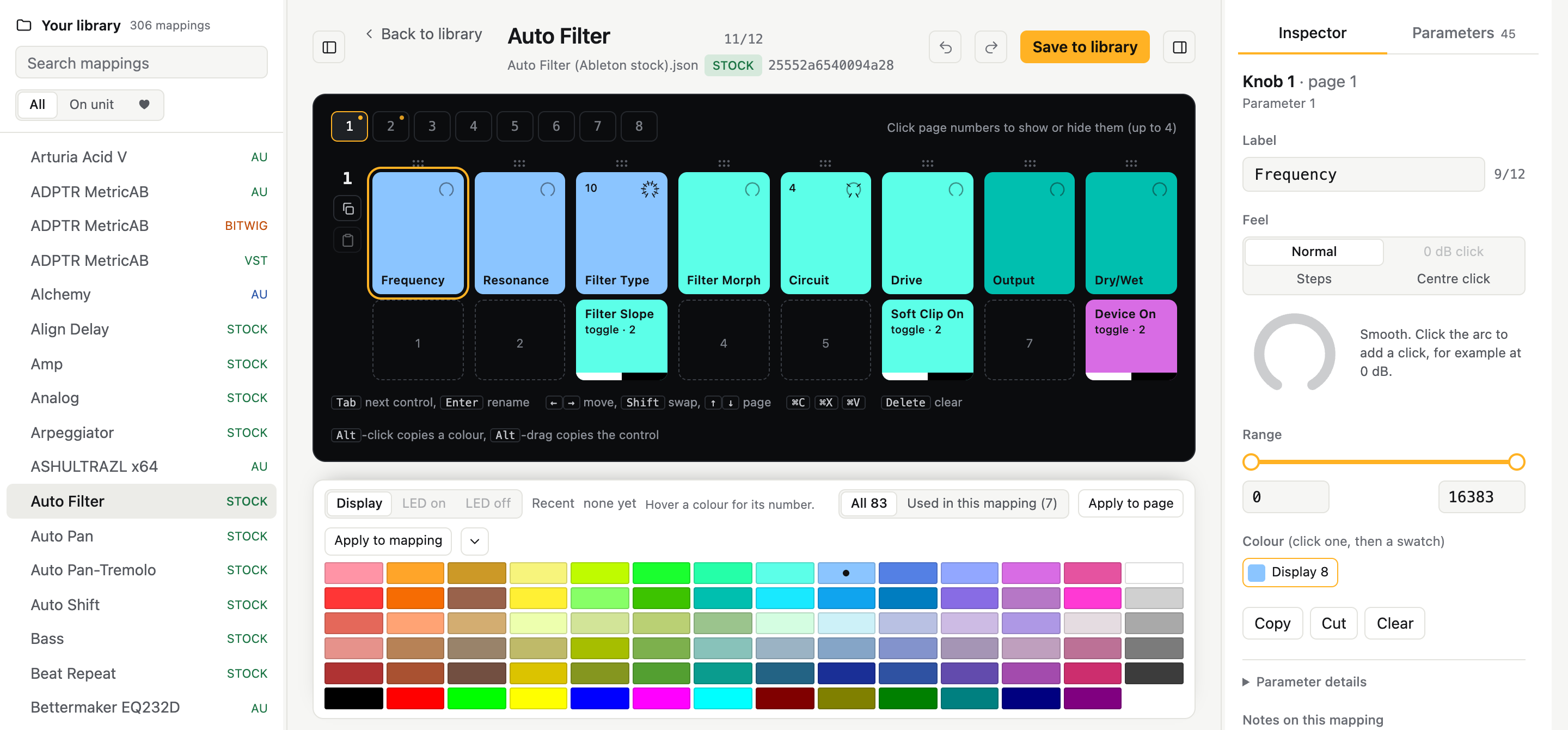
Click Edit on any row. Your library is down the left, the unit's pages in the middle, and the Inspector on the right.
- Pages. Click the page numbers to show up to four pages at once.
- Move controls. Drag a knob or button to move it, or onto another to swap them. Drag the handle above a column to move a knob and its button together. Drag between pages on screen, or hover over a page number while dragging to bring that page into view. Alt-drag copies.
- Copy and paste controls with ⌘C, ⌘X and ⌘V, even between mappings. The buttons beside each page copy and paste a whole page.
- Inspector. Set the selected control's label, feel (Normal, Steps, Centre click or 0 dB click), range and colour.
- Parameters tab. Every parameter the plugin offers, with the mapped ones marked. Drag an unmapped one onto an empty slot to add it.
- Undo and redo are the arrows at the top.
Click Save to library when you're done. If the mapping is on the unit, the button reads Save and replace on unit and updates the unit too. The previous version is archived. Back to library returns to the table.
14. Sharing with other owners
- Share… Tick one mapping you made and click Share… to send it to the online library. The form fills in what the app knows; you add the rest and click Send. It's checked before other owners see it.
- Works for me… On a mapping another owner shared (a Community mapping), tell us whether it works for you, or report a problem.
15. Settings
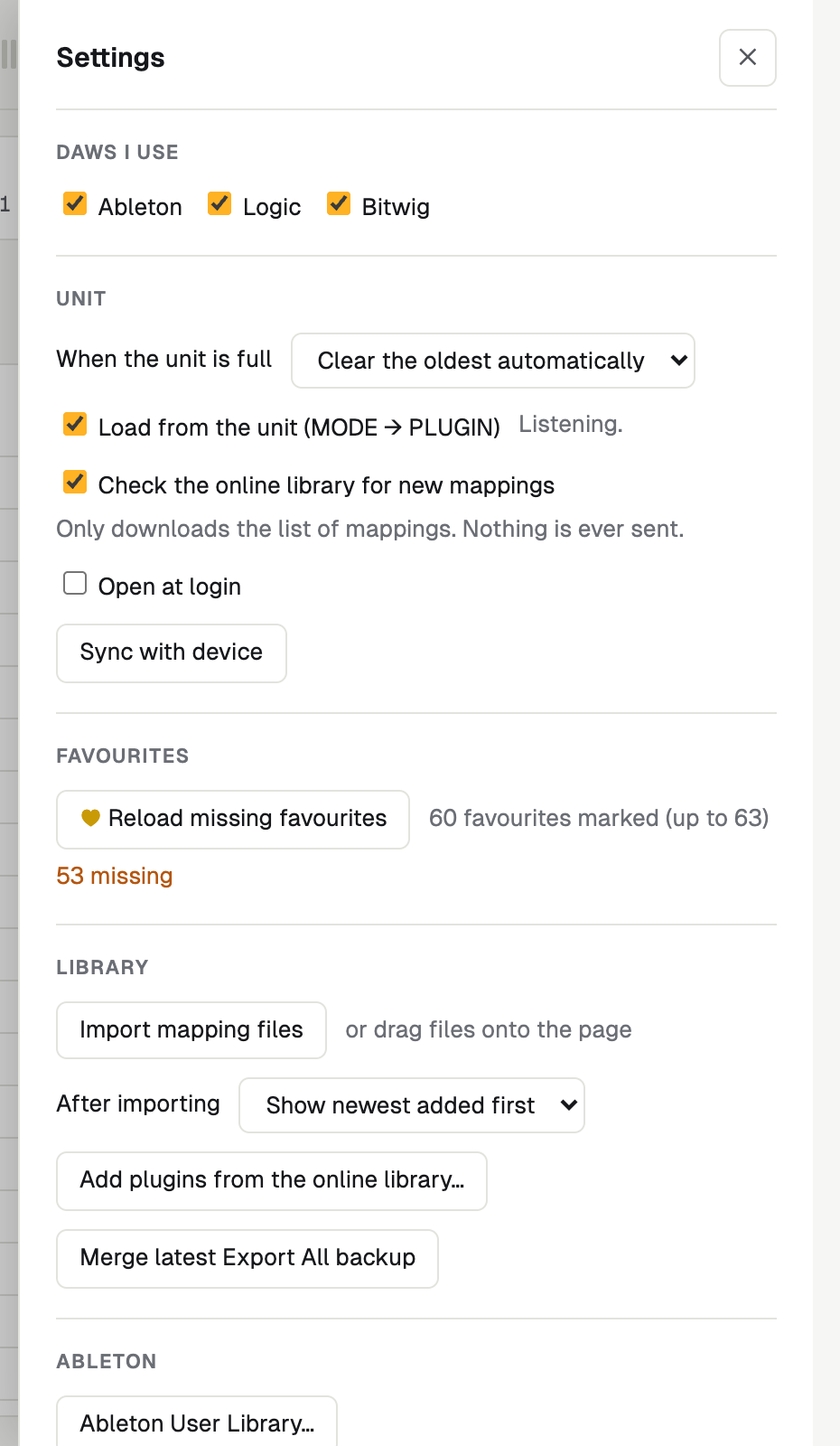
Click ⚙ at the top right.
| DAWs I use | Hides buttons for DAWs you don't use. |
| When the unit is full | Ask which to clear, or clear the oldest. |
| Load from the unit | MODE → PLUGIN loading. On by default; “Listening” means it's ready. |
| Check the online library | Looks for new mappings. It only downloads the list; nothing is ever sent. |
| Open at login | Starts the app quietly in the menu bar. |
| Favourites, Library | The same tools as sections 5 and 8. After importing sets whether new mappings show first. |
| Ableton | Ableton User Library… sets where the RotoLibraryLink script goes. |
| Support | Save a report, or show the log files. |
16. Keeping your mappings safe
- Your library is plain files in Documents → Library for ROTO-CONTROL. Back that folder up.
- Nothing is deleted for good. Deleted, replaced and edited mappings keep their old versions in _archive inside your Mappings folder.
- Back up the unit with Roto-Setup's File → Export All before big changes.
- Updating the app never touches your library. Each new version also copies its settings into App Data Backups first.
17. Troubleshooting and help
| Not connected | Check the USB cable and quit Roto-Setup, then click Check hardware. |
| MODE → PLUGIN does nothing | Make sure the app is running (knob icon in the menu bar), Load from the unit is ticked in Settings, and the plugin's mapping is in your library. |
| Live set is empty | Restart Live and choose RotoLibraryLink as a Control Surface, with Input and Output set to None. |
| Some controls missing in Ableton | Look for a Configure chip on the mapping and follow its steps. |
| UAD plugins in Bitwig | If the unit doesn't find every control, remove the plugin and add it again. |
Still stuck? Settings → Support → Save report for support… puts the app's logs and your DAW and Roto-Setup versions in a zip on your Desktop. The logs include your Mac account name and plugin names, nothing else. Email it to support@manateeaudio.co.uk with your Mac model, macOS version and what you were doing.